

These days most likely you don’t use Twitter any more. But maybe you did use Twitter ten years ago. You can see what you tweeted on this day ten years ago.
The Twitter has an advanced search feature that is continues to be very helpful. There are two ways of doing this search. One is manual, the other is automatic. I’ll run you through the manual version first, so you can see how it works. Then we’ll walk through the automatic method.
The manual method
Today is June 5, 2024. So in the search box we put the following:
from:YOURUSERNAME since:2014-06-05 until:2014-06-06 Two things to point out here:
- Yes, there are two dates. The “since” is today, ten years ago (2014-06-05). The “until”, you add on one more day, so it has a range to search within (2014-06-06). If you use the same date for both “since” and “until”, you’ll get nothing. You need a range for the search to work.
- Change the “from:YOURUSERNAME” to be your Twitter handle. For instance, my Twitter account is @spudart, it would look like this:
from:spudart since:2014-06-05 until:2014-06-06 Now, you take that text and put it into the Twitter search bar. Search and see your old tweets from ten years ago. Pretty neat!
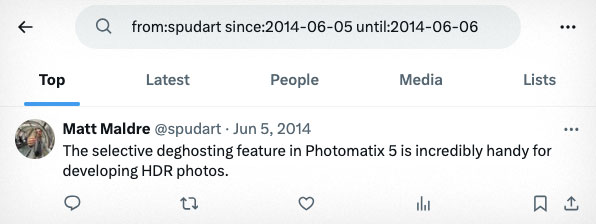
If you don’t see anything, you might need to expand the date range, so something comes up for you. It all depends on how addicted you were to Twitter ten years ago. 😉
The automatic method
Changing that date in the search box can be a little tedious. Wouldn’t it be great if the date could just automatically change on its own?
If you use a bookmarket, the date will automatically change to reflect the exact day, ten years ago. Install this bookmarklet, then all you do is click the bookmark, and you are automatically brought to the page of tweets you made ten years ago. Neat! No date changing needed. The bookmarklet does the work changing the dates.
Here is the code to use in the bookmarklet. Make sure to change “YOURUSERNAME” to your twitter handle without the “@” sign.
javascript: function url() {var date = new Date();date.setFullYear(date.getFullYear() - 10);var y = date.getFullYear();var m = date.getMonth() + 1;var d = date.getDate();if (m < 10) {m = '0' + m;}if (d < 10) {d = '0' + d;}var formattedDate = y + "-" + m + "-" + d;date.setDate(date.getDate() + 1);var y2 = date.getFullYear();var m2 = date.getMonth() + 1;var d2 = date.getDate();if (m2 < 10) {m2 = '0' + m2;}if (d2 < 10) {d2 = '0' + d2;}var formattedDate2 = y2 + "-" + m2 + "-" + d2;return 'https://twitter.com/search?q=from%3AYOURUSERNAME until%3A%27 + formattedDate2 + %27 since%3A%27 + formattedDate + %27&src=typed_query&f=live%27;}window.open(url(), "_self");For instance, if I were using this to see what I tweeted with @spudart ten years ago, I would use this as my bookmarklet:
javascript: function url() {var date = new Date();date.setFullYear(date.getFullYear() - 10);var y = date.getFullYear();var m = date.getMonth() + 1;var d = date.getDate();if (m < 10) {m = '0' + m;}if (d < 10) {d = '0' + d;}var formattedDate = y + "-" + m + "-" + d;date.setDate(date.getDate() + 1);var y2 = date.getFullYear();var m2 = date.getMonth() + 1;var d2 = date.getDate();if (m2 < 10) {m2 = '0' + m2;}if (d2 < 10) {d2 = '0' + d2;}var formattedDate2 = y2 + "-" + m2 + "-" + d2;return 'https://twitter.com/search?q=from%3Aspudart until%3A%27 + formattedDate2 + %27 since%3A%27 + formattedDate + %27&src=typed_query&f=live%27;}window.open(url(), "_self");And yup, you really do just dump all this code into the URL field of your bookmark.
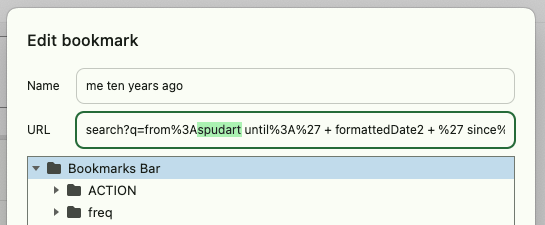
I check this bookmark every morning. It’s fun having a flash to the past. Earlier this year, I found a nice tweet under my @mattshealth account about the bountifulness of chocolate. Oh, the glory days when chocolate was flowing freely and cheaply.
To give a little sense of time travel, I responded to myself ten years later.
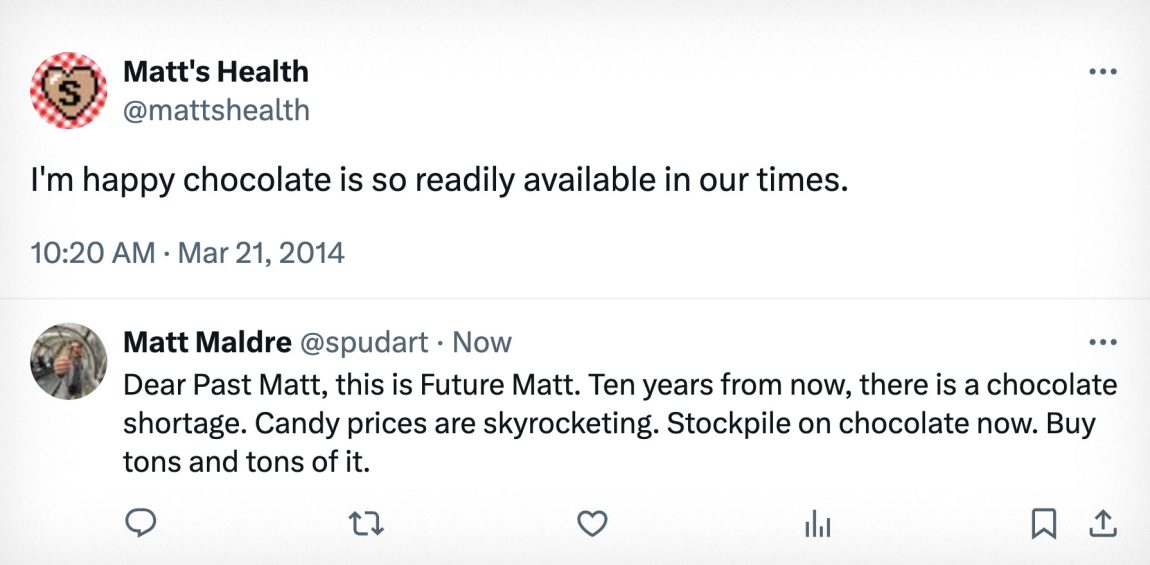
Many people want to delete their past. I like to keep it as an archive for fun things like this.