

When you google something, you’ve probably encountered the AI answers at the top of the results. If you want to turn off those AI answers, there’s a couple ways of doing it.
I made a screenrecording to show you how to turn off the AI results in Google searches.
Or if you prefer to read the instructions
1. The manual way
Here’s how a regular Google search looks with the AI results at the top:

To get rid of the AI results, you can add “-ai” to the end of your query.
If your query is: how much does a dime weigh
Your new query would be: how much does a dime weigh -ai
You’ll get results with no AI:

Hooray! But who in the world is going to remember to type -ai after every search? You want a setting.
2. Adding the setting to Chrome
By default, Chrome does not have a little button that you can just push to say, “Turn this off.” Instead, the setting is buried in the settings. You have to add these weird variables and stuff. But I’m going to show you how to do it.
The trick is to go to Chrome > Preferences… (In Windows, I believe that would be called Settings).
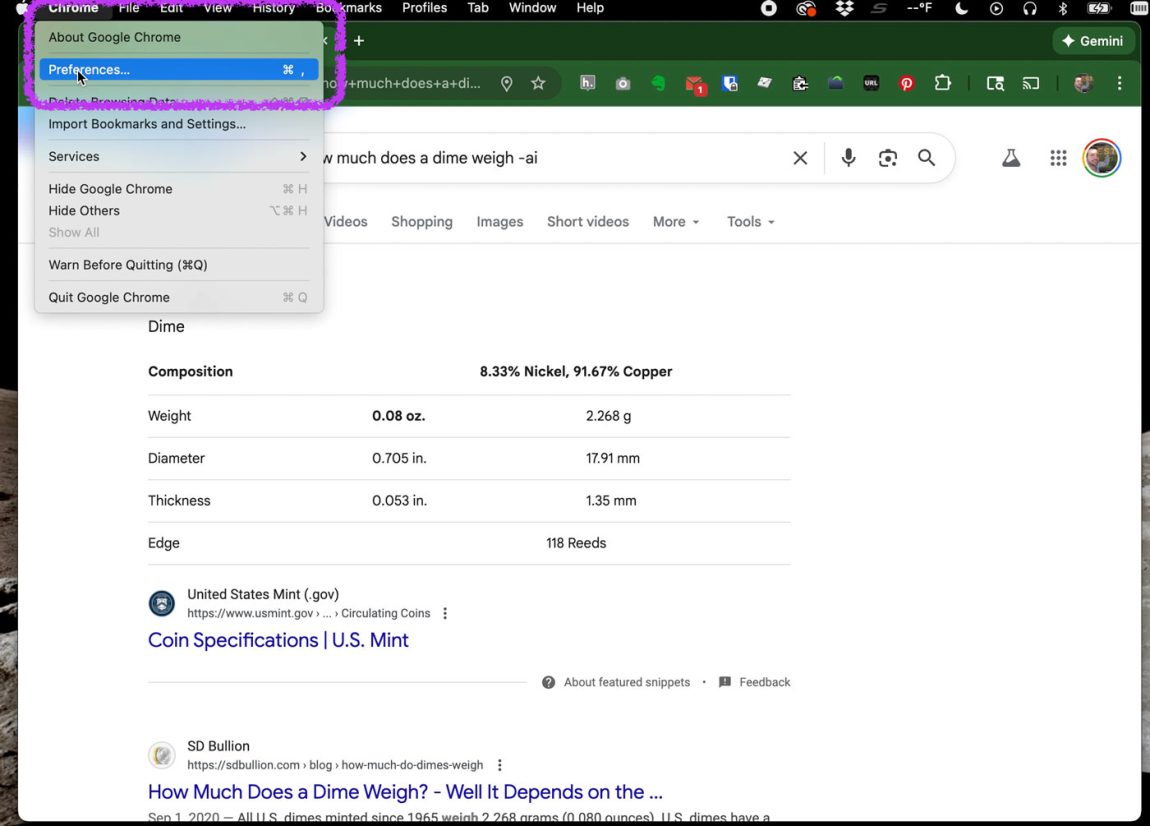
Click on “Search engine” on the left.

Click on Manage search engines and site search.
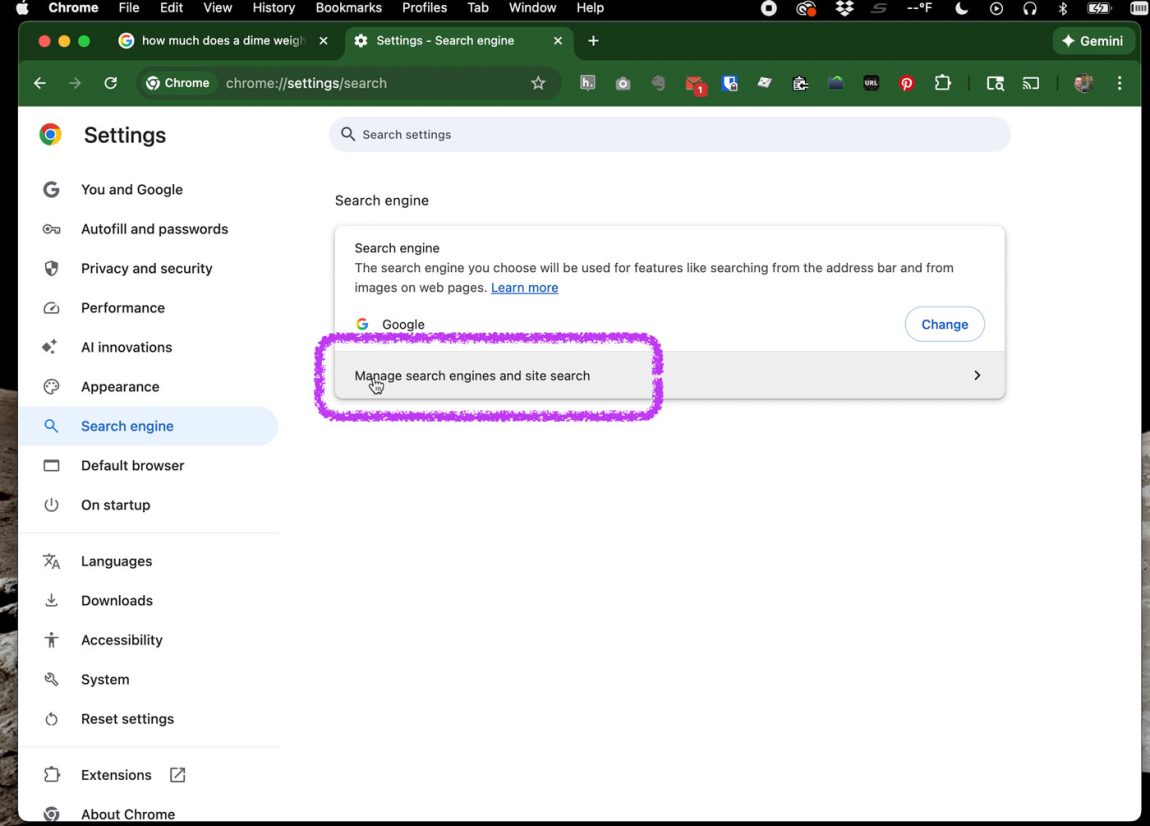
Now we have a list of search engines.
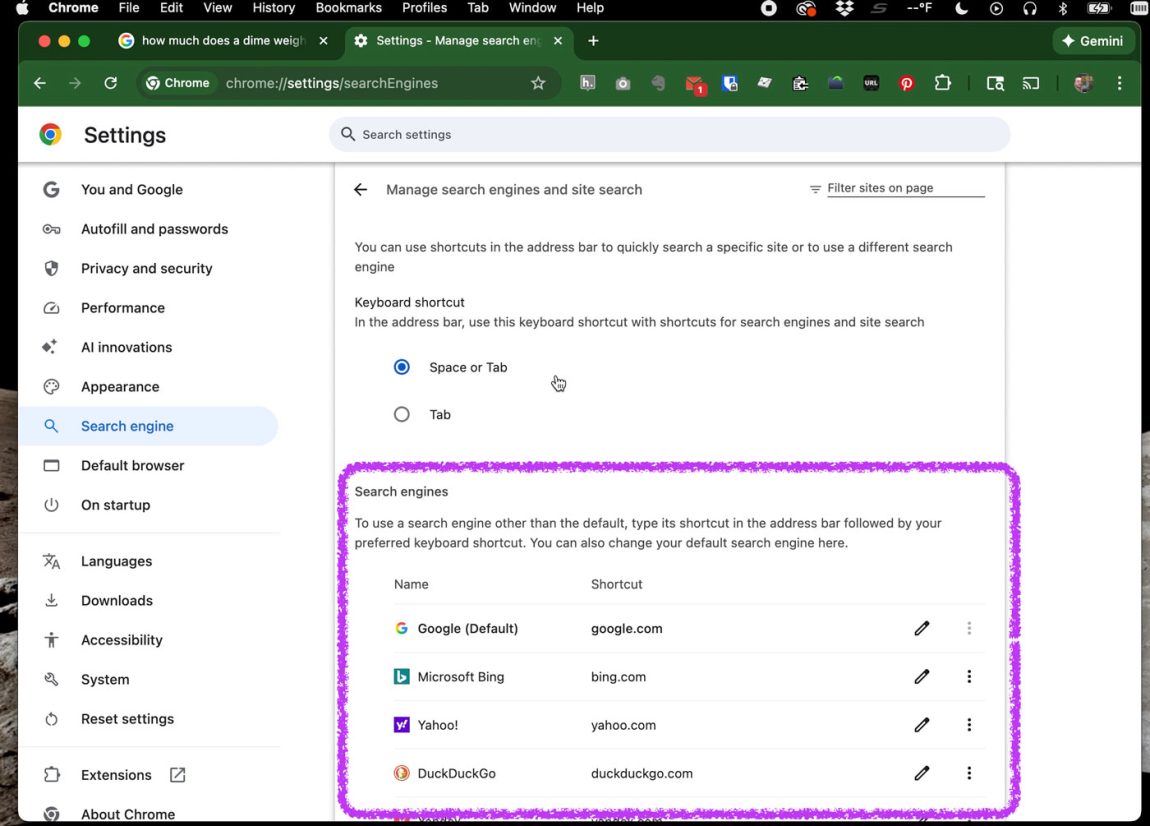
Yours is probably going to say Google by default, which is good. It’s fine. Most people will have that. We want to add a new one to this list. The add button is down here.
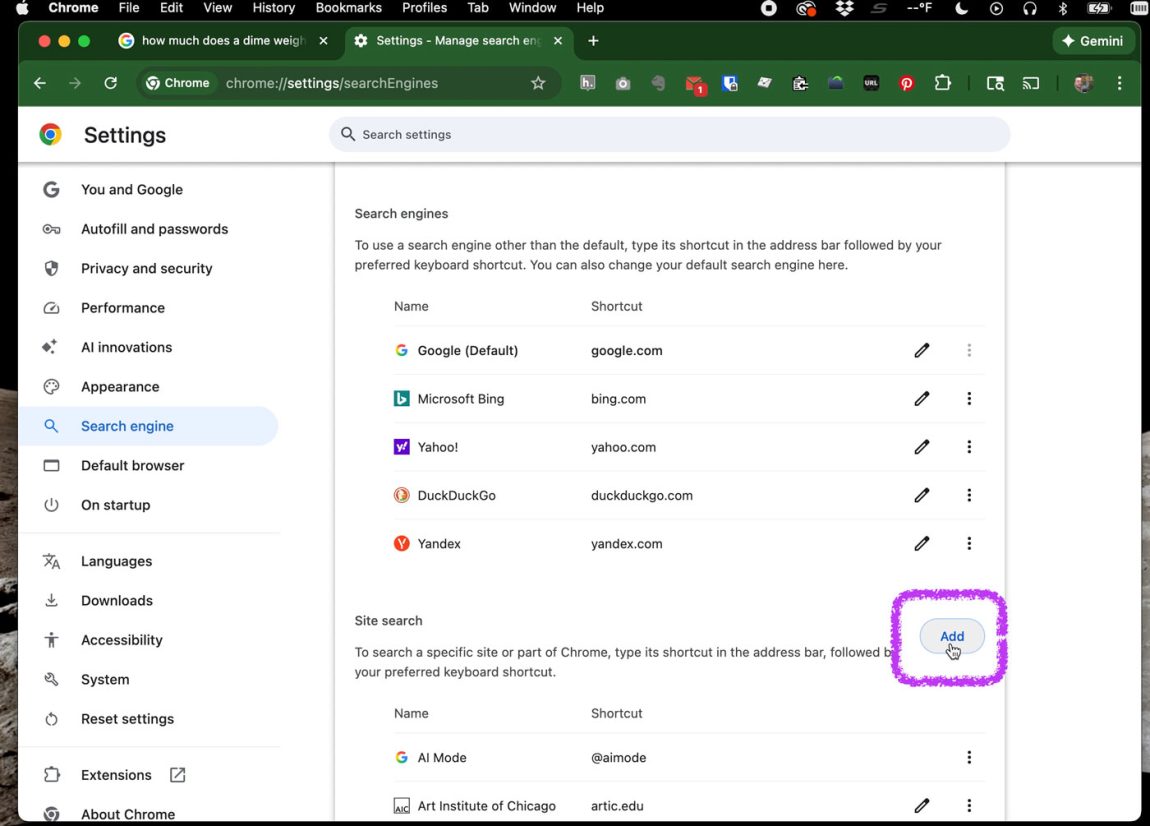
It looks like the Add button is part of the site search. And that searches individual sites. It appears that doesn’t seem like what we want to do. I think Google is being a little tricky with their user interface, so people don’t add this this extra little trick that we’re going to do.
The trick is to actually click that Add button. We click add.
Now we get the screen for “Add site search”.

- Name: Google (No AI)
(Name can be anything you want) - Shortcut: @web
(Shortcut can be anything you want) - URL with %s in place of query: {google:baseURL}search?udm=14&q=%s
(Use that exact text. This forces Google to do the old-fashioned Google search without all the extra little bells and whistles. No AI. Just a simple search.)
Click the “Add” button.
Now, here’s another little trick that Google is playing. We can’t see our new setting named “Google (No AI)”. Where is it?
We have to click “Additional sites” because it’s going to be down below.
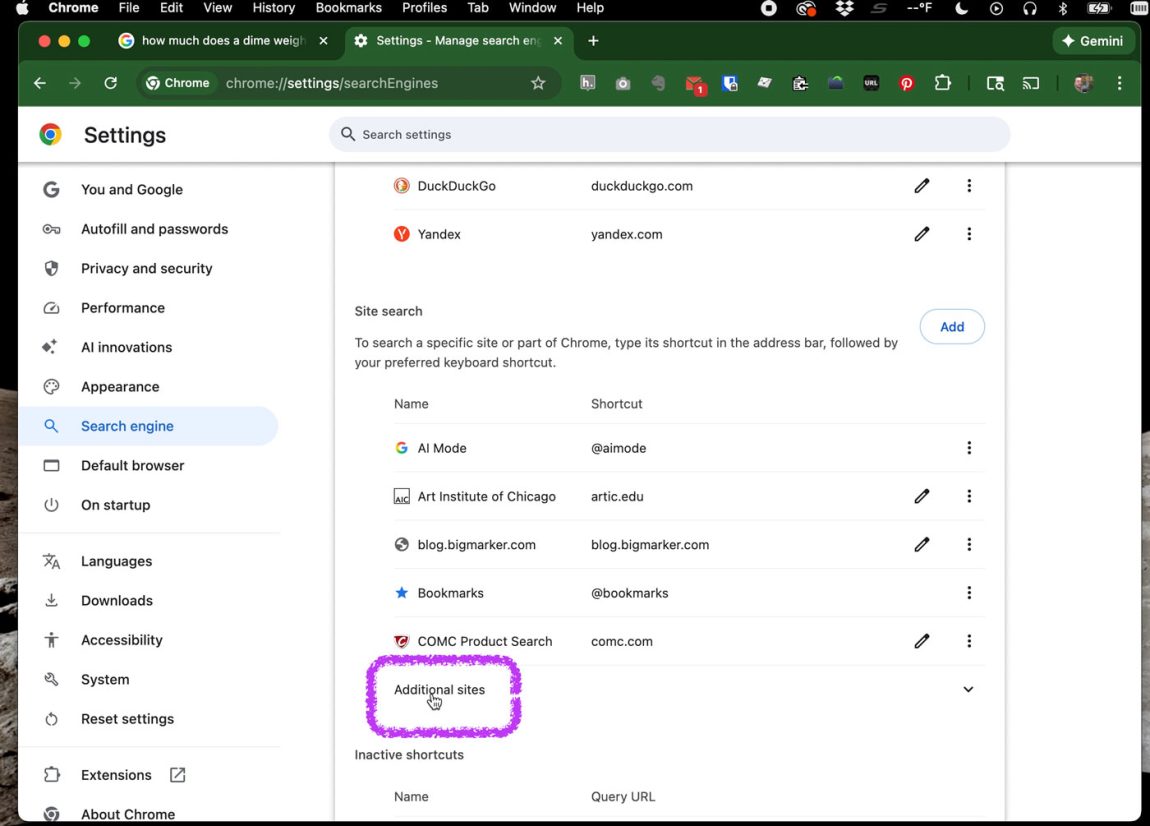
Here’s our setting named “Google no AI”. That’s what we want.
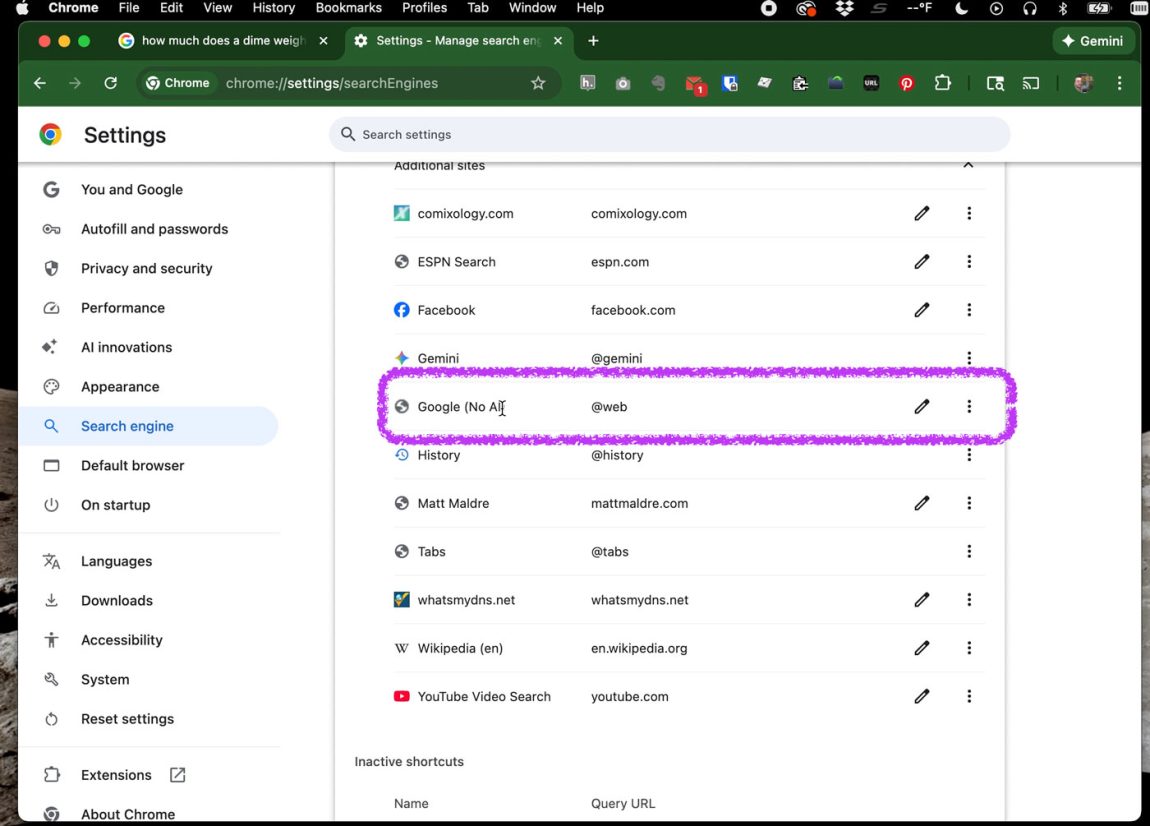
Click the little meatballs, and select “Make default“.

Bada bing bada boom. Yeah, now “Google (No AI)” is our default search engine.
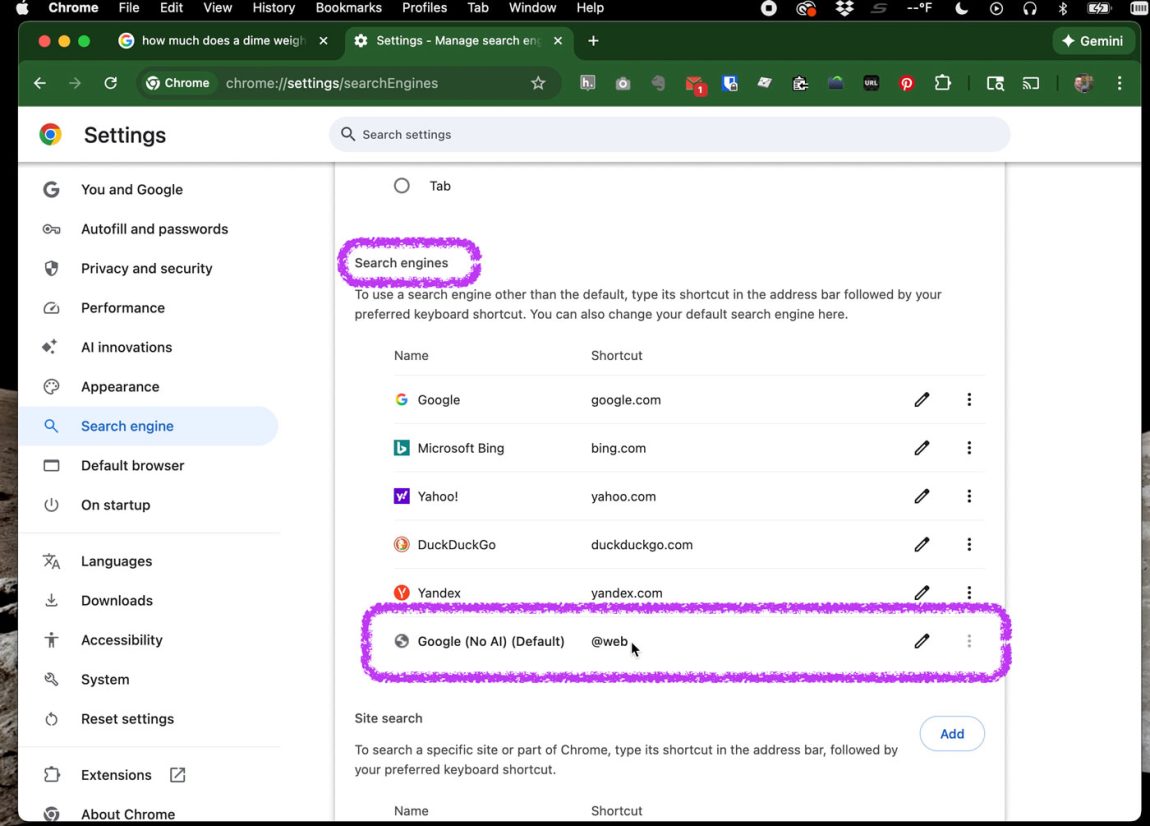
So now when do a search either in the browser’s URL bar, or the Google start page, there’s no AI in here anymore.
The only trick, and I’m going to tell you this, the only trick where this does not work. If you go to google.com, the website, and you do a search, it’s going to give you that AI result. This trick doesn’t work from the website.
The trick we did works in the URL bar up here because this is a browser thing. This is a browser feature. That’s a little URL bar. It’s part of the browser, right?
The trick we did works in the Google start page. Because that’s a browser thing, not a website.
Why does this work?
In our setting we added: {google:baseURL}search?udm=14&q=%s
- {google:baseURL} is equilavent to google.com.
- udm=14 is a search parameter. And anytime you do a Google search with that udm=14 in the URL, that’s telling Google to keep it old school, man. I remember 14, because Ernie Banks, one of the greatest Chicago Cubs of all time wore #14. He played in the 1950s, 60s, and 70s. Thus, he’s old school. Not that you need to remember this trick because our Chrome setting automatically adds udm=14.
- q=%s is your actual search keywords.
This trick is only for desktop like laptops and computer towers. It’s not for cell phones.
Other values that work
We used:
- {google:baseURL}search?udm=14&q=%s
You can also use any of these values:
- {google:baseURL}search?q=%s&udm=14
- https://www.google.com/search?q=%s&udm=14
- https://www.google.com/search?udm=14&q=%s
I personally like using udm=14 before q=%s. It forces Google to include it right at the start of the URL, so then Google can’t just simply chop it off.